Add visual inputs
Import files, drag and drop, paste from the clipboard, or capture the active Photoshop document.
 Creative Prompt Studio
Turn product photos, visual references, brand assets, and creative direction into detailed prompts written for the image model you plan to use inside Photoshop.
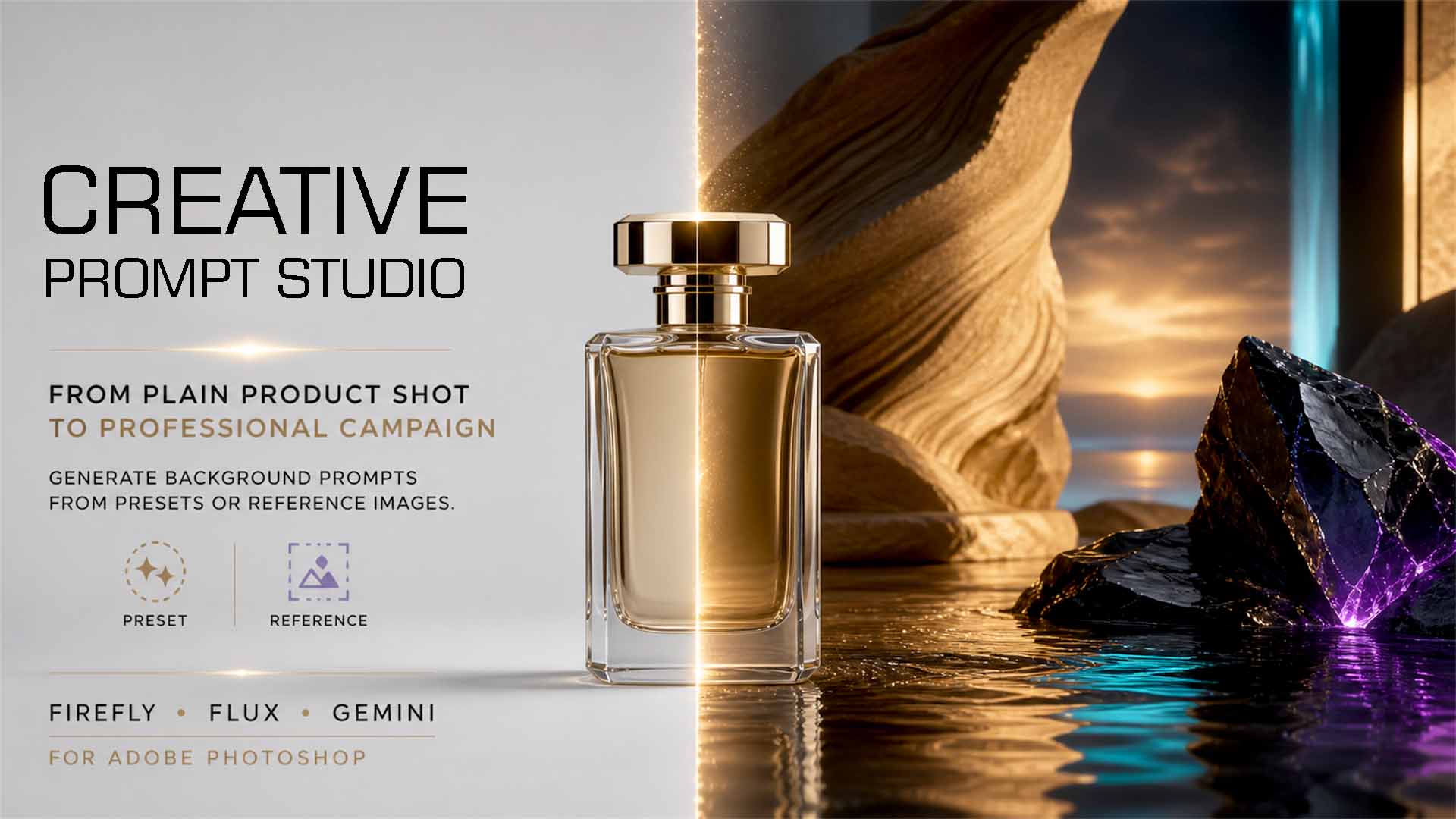
Creative Prompt Studio lives inside Photoshop and turns visual intent into structured generation language. Instead of wrestling with a blank text box, you define what the AI should preserve, what it should reference, and how the final image should feel.
Move from source material to an engine-specific prompt without breaking your creative flow.
Import files, drag and drop, paste from the clipboard, or capture the active Photoshop document.
Mark each image as Subject, Reference, Identity, or Logo so the AI understands its purpose.
Choose a genre, style, camera angle, target model, and any additional creative context.
Copy the finished prompt or store it with a canvas thumbnail in your searchable library.
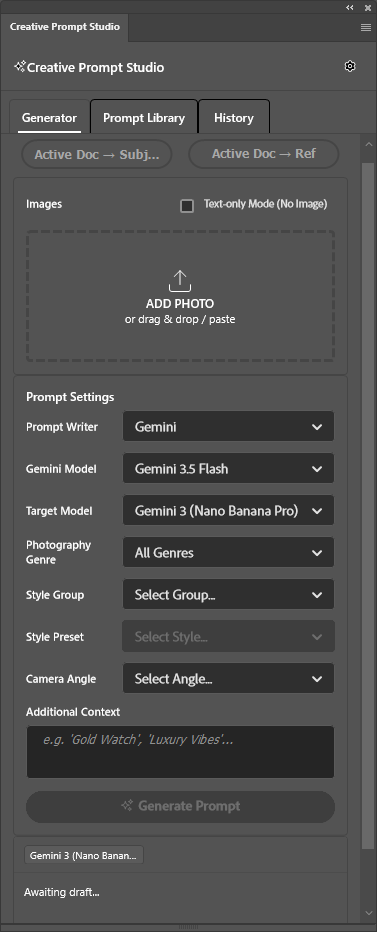
The panel combines visual inputs, creative controls, prompt generation, history, and a reusable library in one compact workspace.
Each part of the panel helps translate a visual brief into language the selected model can use.
Subject, Reference, Identity, and Logo roles give every image a clear job in the final prompt.
Generation language adapts for rich image creation, fill and expand, or identity-preserving edits.
Explore commercial, luxury, editorial, botanical, cultural, architectural, and lifestyle directions.
Move from eye level and hero low angles to macro, flat-lay, knolling, and levitation compositions.
Capture the current Photoshop canvas and use it as a visual input without leaving the application.
Search, edit, organize, import, and export prompts with folders and visual document thumbnails.
Select the engine you intend to use and Creative Prompt Studio adjusts the wording and structure of the prompt.
Develop prompt direction for product advertising, fashion, architecture, lifestyle, editorial imagery, and more.
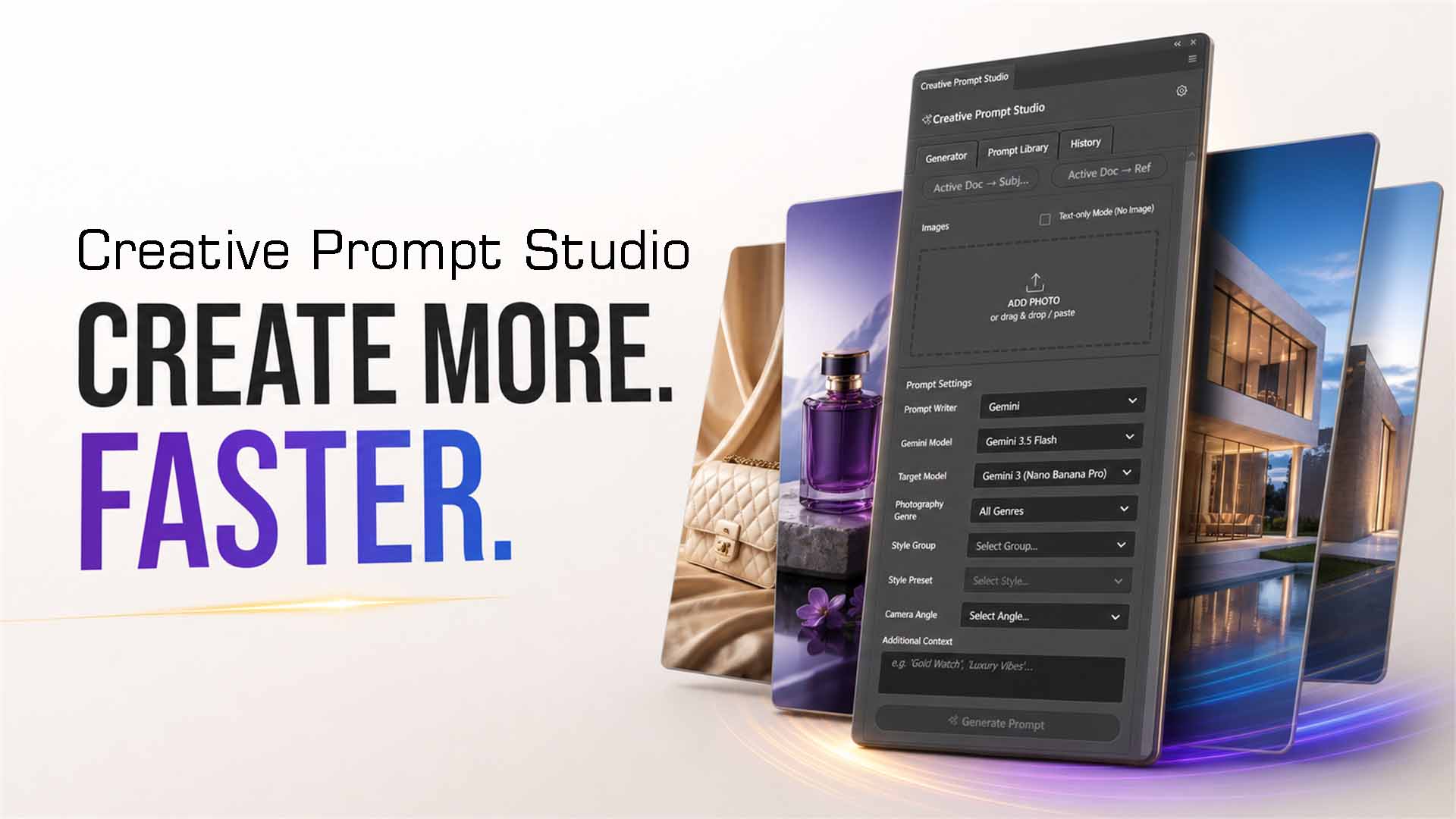
Connect a supported provider in Settings. Keys are stored per provider in UXP secure storage, with a local fallback, and are used only for direct prompt-writing requests.
No. It analyzes your visual inputs and creative settings, then writes a detailed prompt for the image model you plan to use. Image generation happens in the selected Photoshop workflow.
Yes. You need a personal API key from at least one supported prompt-writing provider: Google Gemini, OpenAI, Anthropic, or OpenRouter. Provider usage charges are separate from the plugin purchase.
Yes. Text-only mode can build a prompt from a selected style and written context. Image-based mode adds role-aware visual analysis.
Yes. Prompts can be organized into folders, searched, edited, and exported or imported as JSON for backup and transfer.
Yes. The CCX package includes Windows and macOS support for compatible versions of Adobe Photoshop.
Keep your references, creative controls, prompt history, and model-aware direction together inside Photoshop.